Background Remover PNG uses an AI model to cut the subject out of a photo and hands it back as a transparent PNG: the person, product or pet stays, and everything behind it becomes empty space you can lay over anything. It's free, the PNG has the same pixel dimensions as your original, there's no watermark, and the cutout runs inside your browser, so the photo is never uploaded anywhere.
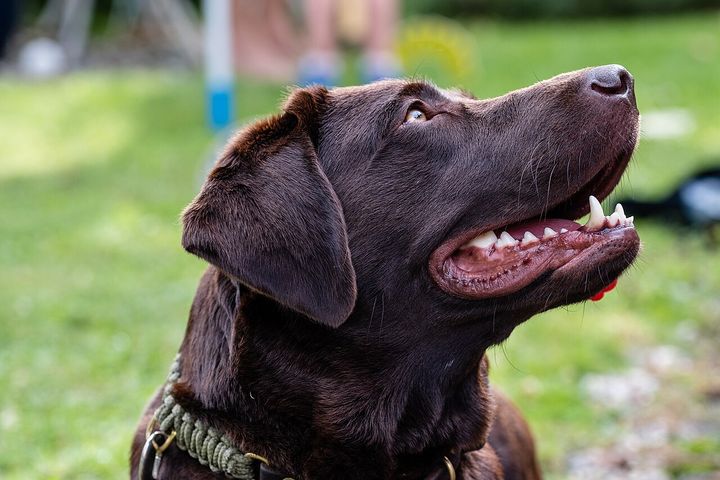
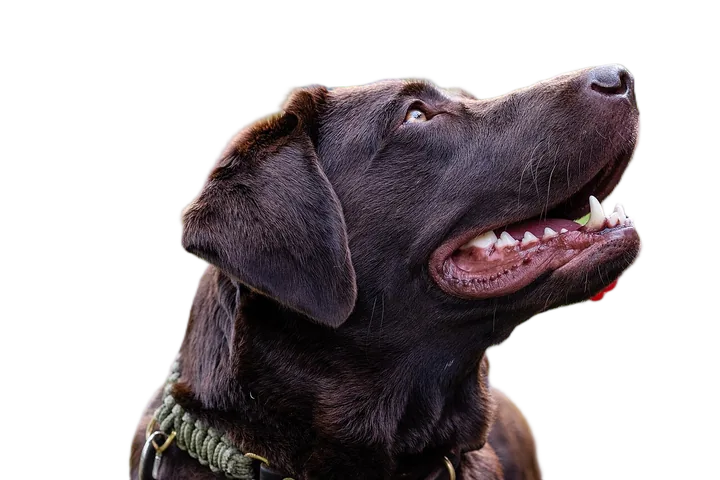
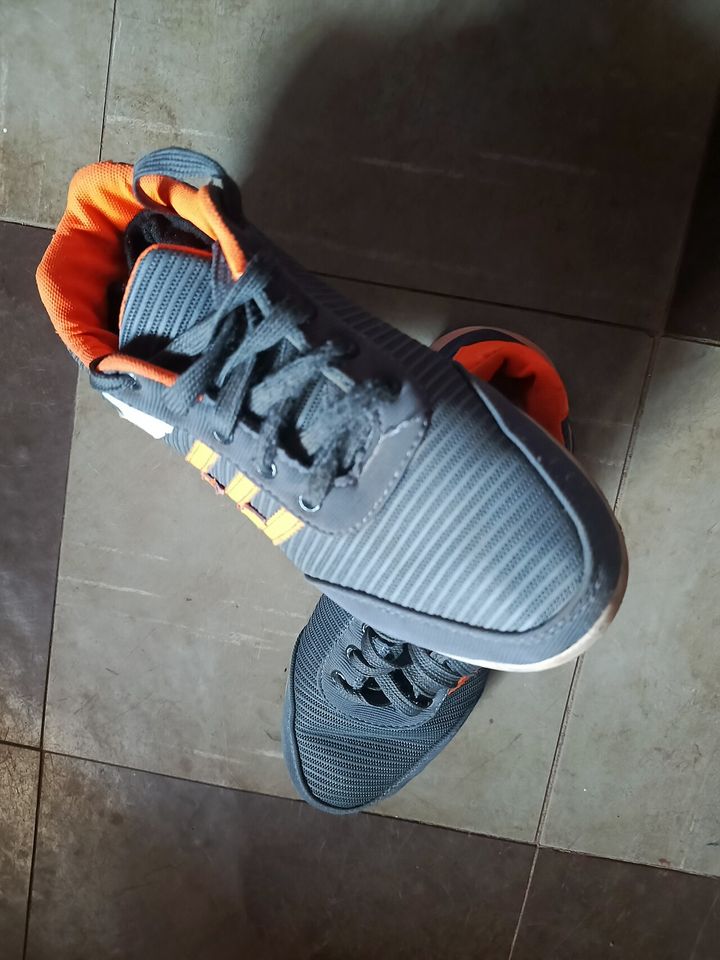
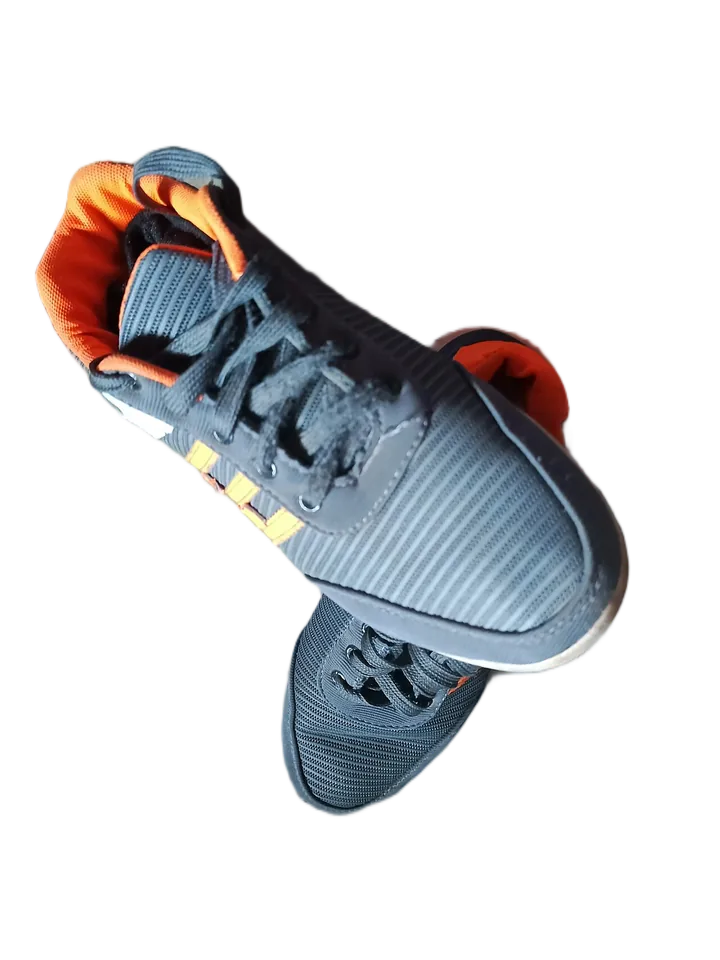
No photo handy? The Dog and Shoe buttons open credited sample photos in the editor and run the same background removal. Once a result is ready, its download controls sit directly below the preview on a phone.
Why the download is a PNG
A PNG can store a transparency value for each pixel alongside its color. That extra value, called the alpha channel, is what lets a cutout sit on a slide, a web page or a product listing without a white box around it. It doesn't have to be all or nothing, either: a pixel can be partly transparent, so a soft edge fades out gradually instead of ending in a jagged line.
JPG, by contrast, has no alpha channel at all, which is why a JPG can't be transparent. If a JPG is what you have, read about making a transparent PNG from a JPG. For the fuller story of alpha channels, the checkerboard pattern and the other formats that support transparency, read what a transparent background is.
What you get
- Your photo's full size. The PNG keeps the width and height in pixels of the image you opened. Photos beyond what the browser can hold, roughly 36 megapixels on a laptop or desktop and 16 on a phone, are scaled down, and the page tells you when that happens.
- No watermark, no signup, no daily limit. Every download is clean, however many photos you work through.
- A choice of backgrounds. Leave it transparent, or set the subject against plain white or black, a color you pick, a two-color gradient, a blurred version of the same photo, or a picture you choose.
- Position your background photo. Zoom in and move it with sliders or dragging while the subject stays in place. The photo keeps its proportions and covers the frame; Reset background returns to its centered fit.
Your photo stays on your device
The cutout is made by BiRefNet, an open-source AI model released under the MIT license, running inside your browser tab. On browsers with WebGPU, your graphics chip does the work; elsewhere your processor handles it through WebAssembly. Either way, opening, cutting out and saving all happen locally, on the computer or phone you're using.
That is also what makes it private. No server ever receives your image, so there is nothing to store, share or delete afterward, and once the model has loaded, a cutout doesn't even need an internet connection. It suits pictures you'd rather not hand to a website, such as family photos or a product that hasn't launched yet. The privacy policy has the details.
Tools for the finishing touches
When the automatic cutout needs help, or the image needs a particular shape, these are built in:
- Before/after slider. Drag it across the picture to compare the cutout with the original and spot a missing ear or a leftover patch of background.
- Erase and restore brush. Paint away anything that should be gone, or paint back anything the AI removed. Size and softness are adjustable, and undo and redo make it safe to experiment.
- Remove a color. Click the color you want gone, then adjust the tolerance to take out a flat background, the white inside letters, or the plain backdrop behind a logo.
- Crop and size. Trim off the empty margin around the subject automatically, add padding back for breathing room, choose original, 1:1, 4:5 or 16:9 proportions, and set a common width or a custom size.
- Drop shadow. Add an optional conventional shadow behind the cutout, with adjustable color, opacity, softness and position. Its shape follows your brush corrections. It stays inside your chosen frame; add padding if it reaches the edge.
Resize or compress a batch of images
For pictures that need different dimensions or a smaller file, use the batch image resizer or image compressor. They keep your pictures on your device, show the actual output size and let you download the results together as a ZIP. The background editor above handles one image at a time.
Tips for a cleaner cutout
The AI does best when it can see exactly where the subject ends. A few habits help with any photo:
- Contrast. Dark against light, or light against dark, gives cleaner edges than a gray sweater on a gray couch.
- Focus. Motion blur and soft focus smear the outline, and the cutout can only follow the edge it can see, so use your sharpest shot.
- Framing. Keep the whole subject inside the photo. A hand or the tip of a shoe cut off by the edge of the frame stays cut off in the PNG.
- Tricky materials. Clear glass, fine lace and smoke are the toughest cases for any background remover, so check them with the slider before you download.
What people make with it
- Product photos for Etsy, eBay or Amazon listings, or a Shopify store, placed on white or a brand color.
- Profile pictures on a clean color, cropped square. The profile picture maker adds a circle frame and a ring, and the circle crop rounds off any picture without cutting anything out.
- Stickers, thumbnails, slides and flyers that need the subject without a box around it.
- Logos and signatures, which have their own pages and presets: removing a background from a logo clears the flat color first and keeps edges crisp, and a transparent signature turns a photo of your signature on paper into clean dark ink with nothing behind it.
For people, pets, cars, food and other everyday subjects, the guide to removing the background from any image has photo tips for each one.
Frequently asked questions
Is Background Remover PNG free?
Yes. There is nothing to pay and nothing to sign up for, and the PNG you download is full size with no watermark.
Is it safe to use with private photos?
Yes. The AI model runs inside your browser, so a private photo is processed right where it is, on your computer or phone, and is never sent anywhere.
Does the PNG lose quality or resolution?
No. Nothing is shrunk unless the photo is too large for the browser's memory, and in that case a notice on the page tells you. PNG is also lossless, so saving the cutout adds no compression artifacts.
Why is the first cutout slower than the rest?
Because the AI model has to arrive first: roughly 50 MB that your browser fetches on first use and then keeps for later visits. From then on, a recent computer usually finishes a cutout in a few seconds, while an older phone needs more time.
Can I use it on my phone?
Yes. It runs in your phone's web browser, and photos in the iPhone's HEIC format open directly. Older phones take longer per cutout, and photos above about 16 megapixels are scaled down to fit in a phone's memory.
How well does it handle hair and fur?
Hair and fur are among the hardest edges to cut out. Fine strands are kept as partial transparency instead of being cut off with a hard line, and you can paint back a missing wisp with the restore brush. A sharp photo against a plain, contrasting background gives the cleanest result.
Can I use my cutouts for commercial work?
Yes. The image is yours, and this site claims no rights over anything you open or download. Just check that you're allowed to use the original photo, for example because you took it or the owner gave you permission.
Which file formats can I open, and what do I get back?
You can open JPG, PNG, WebP, AVIF, BMP, GIF (the first frame only) and HEIC or HEIF files. Cutouts with a transparent background are saved as PNG; put the subject on a solid color or a photo and you can pick JPG or WebP as well.